
FROM SETUP TO EVERYDAY USE
Your next step, explained.
Practical guides for the existing Translator tools. Controls can vary with the deployed version and your permissions.
GUIDE 01
Install and get started
Click here to open the Big Daddy Translator installation in Discord. Sign in if prompted, choose the server where you have permission to add apps, and continue. Review the requested permissions and authorise the bot; complete any Discord verification if prompted. Then open /panel in your server to get started. You can also open the existing web panel, authenticate with Discord and select your server.
GUIDE 02
Translate a message
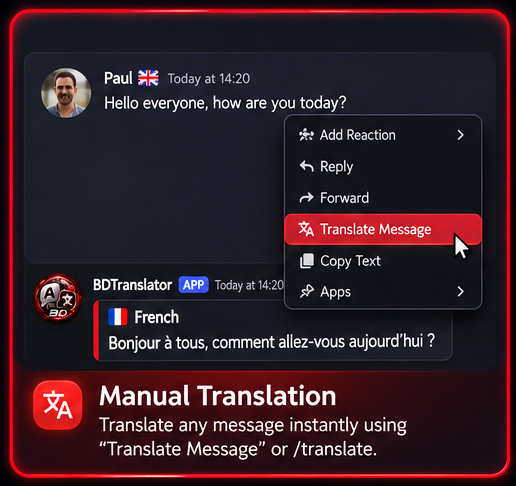
In Discord, open /panel and choose Translate for individual text, or open a message’s context menu and choose Apps → Translate Message. Select a target language when prompted. Discord and the installed interface impose input and output limits; split long text if needed.
GUIDE 03
Set your language
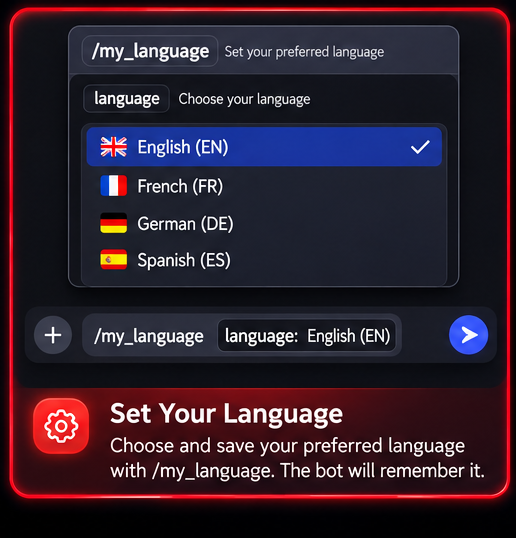
Open /panel and choose My Language to set your preferred translation language. Check the language options offered by your installation. A listed language still needs a working translation route in your installation.
GUIDE 04
Connect mirrored channels
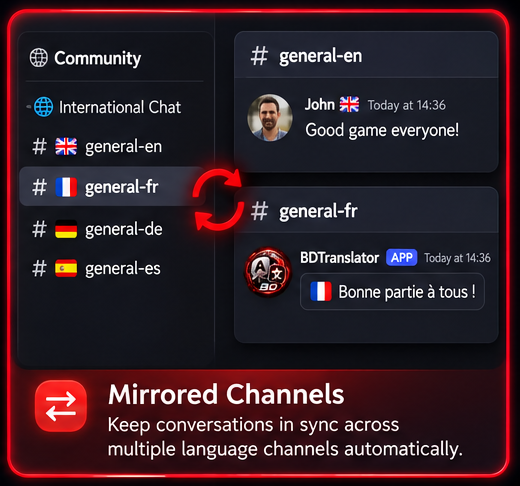
Mirroring is a Community entitlement. Confirm access first. Open /panel and use the available server administration tools to configure and inspect language groups. Legacy setup slash commands are not published in the supplied panel-only command registration. Check channel permissions and language choices before testing with a short message. Panel editing depends on an active bot control bridge.
GUIDE 05
Use inline translation
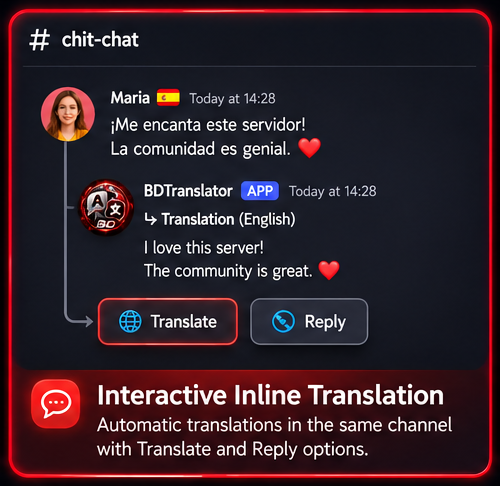
Interactive inline translation/reply is a Starter and Community entitlement. Where it is enabled, use the message’s Translate and Reply controls and follow the prompts. Missing controls can indicate disabled configuration, unavailable bot connectivity or unverified paid access. Ask your server administrator to check the installation; do not assume that paying alone enables an undeployed feature.
GUIDE 06
Administer your server
Open /panel and use the available server administration tools to inspect configuration and feature status. Existing panel access is governed by Discord permissions. Some server settings remain unavailable until their bot connection is implemented and tested. Bot owner update and engine controls are outside normal customer setup.
GUIDE 07
Manage subscriptions
Open the existing Translator panel and select Subscriptions for your server. The current Discord server owner starts a new purchase. The original payer uses the existing customer portal for invoices, payment methods and cancellation, including after an ownership transfer. Confirm payment and server status in the panel. If a checkout is pending, use its existing recovery options; do not start duplicate purchases.